About two years ago I was curious about using Microsoft Edge, so I gave it a peek and went between using Edge and Chrome on my Windows PC. Edge fired up quick on my aging laptop and rendered web pages fast. Then I started using the Collections feature and found it useful for keeping websites and notes in one place (i.e. household projects, shopping, movie research).
It wasn’t long before I was using Edge on my desktop full time and Chrome on my phone (A Pixel 4 XL at the time). I wasn’t getting the full functionality of Edge, so I installed it on my Pixel 4 XL. Soon I was reading web pages on my phone and sharing them to my PC, using collections on both mobile and laptop. Everything worked seamlessly and I was pleased.
The only feature I miss, but rarely use, is the ability to click on a phone number on my PC and have it use my phone to call. There’s probably a workaround to get Edge to do this, but I haven’t missed it enough to find one.
I now use Edge exclusively. Although the AI Copilot is a click away, it’s not something I’ve used…at least not yet. So, with all that said, below are three things that keep me using Microsoft Edge on my desktop.
Privacy
Microsoft Edge on a PC has three simple options for privacy that are easy to understand. You can find these under Settings > Privacy, search, and services section. This is also where you can view the trackers that Edge has blocked and add exceptions for specific trackers if you need to.
If you scroll down, there’s a host of security options for private browsing for those who want to ramp up their security. Near the bottom of the page are options to turn on the Microsoft Edge VPN. Edge has options that will please just about anybody.

Collections
PC and mobile.
On a phone, you get to Collections by tapping on the three lines at the bottom, right of the browser. Collections is in the middle of the top row on the panel that slides up.
On a PC, if you don’t see the Collections button, you can get there by clicking on the three dots in the upper right (… > More Tools > Collections). Think of Collections as temporary bookmarks for when you’re shopping, working on a project, writing a paper, or anything that you may want to add notes to or quickly delete when you’re finished.
You can easily add notes to Collections (it’s the same on a PC as a phone). Click/tap on the panel you want to add the not to. There will be three dots in the upper right, click/tap on them and a menu will pop up (see image below). Click/tap on Add note. On a PC, there are also options for opening the link you want to view.

Split Screen
Split screen is specific to laptops/desktops.
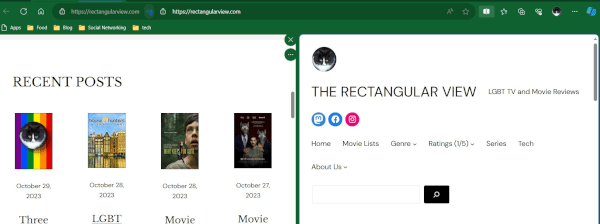
Edge allows you to split the screen instead of having to toggle between tabs. Just click on the Split Screen button to the right of the URL/web address bar, it’s a rectangle with a line going through it (see image below).

Split Screen gives you two address bars, one for the right side and one for the left. Any link you click on in the left panel will open in the right. If you don’t want links to open on the right, click on the link button in the address bar on the left and choose Unlink Tabs. This will make the two panels/windows operate independently.
So there you have three reasons I keep using Microsoft Edge. I’ll cover other features for Microsoft Edge in future posts.